Authentication
Catalyst SD-WAN Manager supports a variety of authentication mechanisms.
- From 20.18
- Create an API key under SD-WAN Manager user profile
- Obtain the XSRF token using the SD-WAN Manager URL and API key
- Use the API key along with the XSRF token in headers:
X-XSRF-TOKEN: <xsrf-token>,Authorization: Bearer {{apikey}}
- Login with a username and password
- Returns
Set-CookiewithJSESSIONID - Get XSRF token
- Use the XSRF token in headers for further API requests
- From 20.18.1
- Log in with a username and password to receive a JWT token
- When user authentication is successful, the response body contains a JSON object
- Retrieve the access token through the
tokenclaim - The
csrfclaim contains the XSRF prevention token required for most POST operations - Use the access token along with the XSRF token for further API requests
- API Gateway from 20.15.1
- Obtain the API gateway URL from the SSP endpoint using API key and organization name
- Obtain the XSRF token using the API gateway URL and API key
- Make API requests using
X-XSRF-TOKEN: <xsrf-token>andAuthorization: Bearer {{apikey}}headers
1. Using API Key
Section titled “1. Using API Key”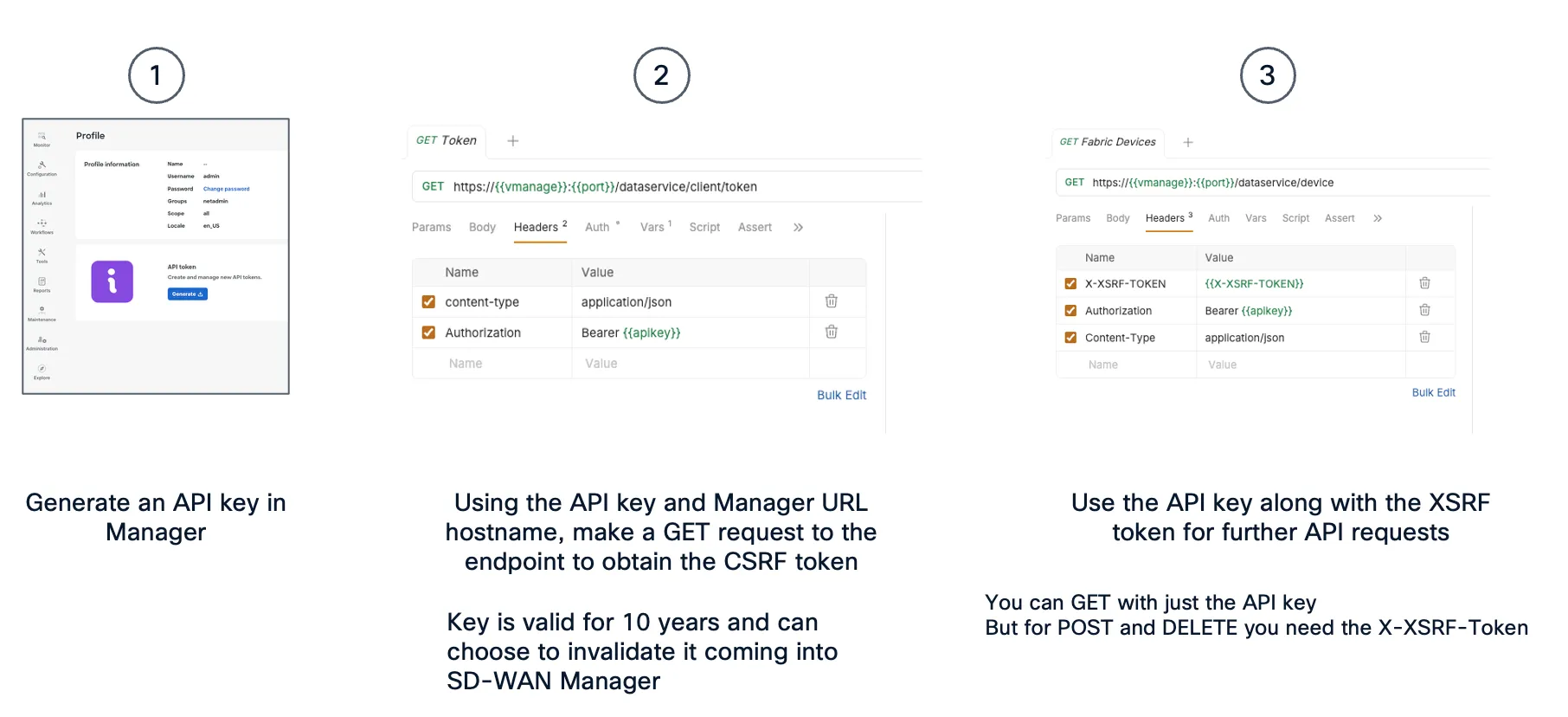
API key authentication was introduced in Cisco Catalyst SD-WAN Manager 20.18 as an alternative to traditional session-based authentication with JSESSIONID cookies.
This is the authentication method used throughout this lab. Before you run the API requests in later sections, you first use your API key to obtain an XSRF token. After that, each request sends both values in the HTTP headers:
content-type: application/jsonAuthorization: Bearer {{apikey}}X-XSRF-TOKEN: {{X_XSRF_TOKEN}}- apikey: identifies and authorizes the API client.
- X_XSRF_TOKEN: satisfies Manager’s cross-site request forgery protection for state-changing operations such as
POST,PUT, andDELETE.
The rest of this section explains the authentication flow. The hands-on Bruno requests are covered later in Practice with Bruno.
To obtain the API key:
- In Cisco SD-WAN Manager, click your username at the top of the page, then choose My profile
- In the API token area, click Generate
- SD-WAN Manager generates and displays the API key
- Copy or download the API key and store it securely
To obtain the organization name:
- In Cisco SD-WAN Manager, open Administration > Settings > Organization name
- Copy the value from the Organization name field
Using the API key and Manager hostname, make a GET request to the token endpoint:
POST/dataservice/client/tokenGet Token
Authorization: Bearer {{apikey}}Content-Type: application/jsonRequest body
No BodyResponse
BB1AB8301ADF257AEB251839E8AD35733529D90CCD7CA345D8334473FF9F8864829AD5273253AF554F474E8DF8408787271DThe response body is the XSRF token as a plain string, with no JSON wrapper. Save it as X_XSRF_TOKEN.
All subsequent lab requests use this same header pattern:
content-type: application/jsonAuthorization: Bearer {{apikey}}X-XSRF-TOKEN: {{X_XSRF_TOKEN}}2. Session Based
Section titled “2. Session Based”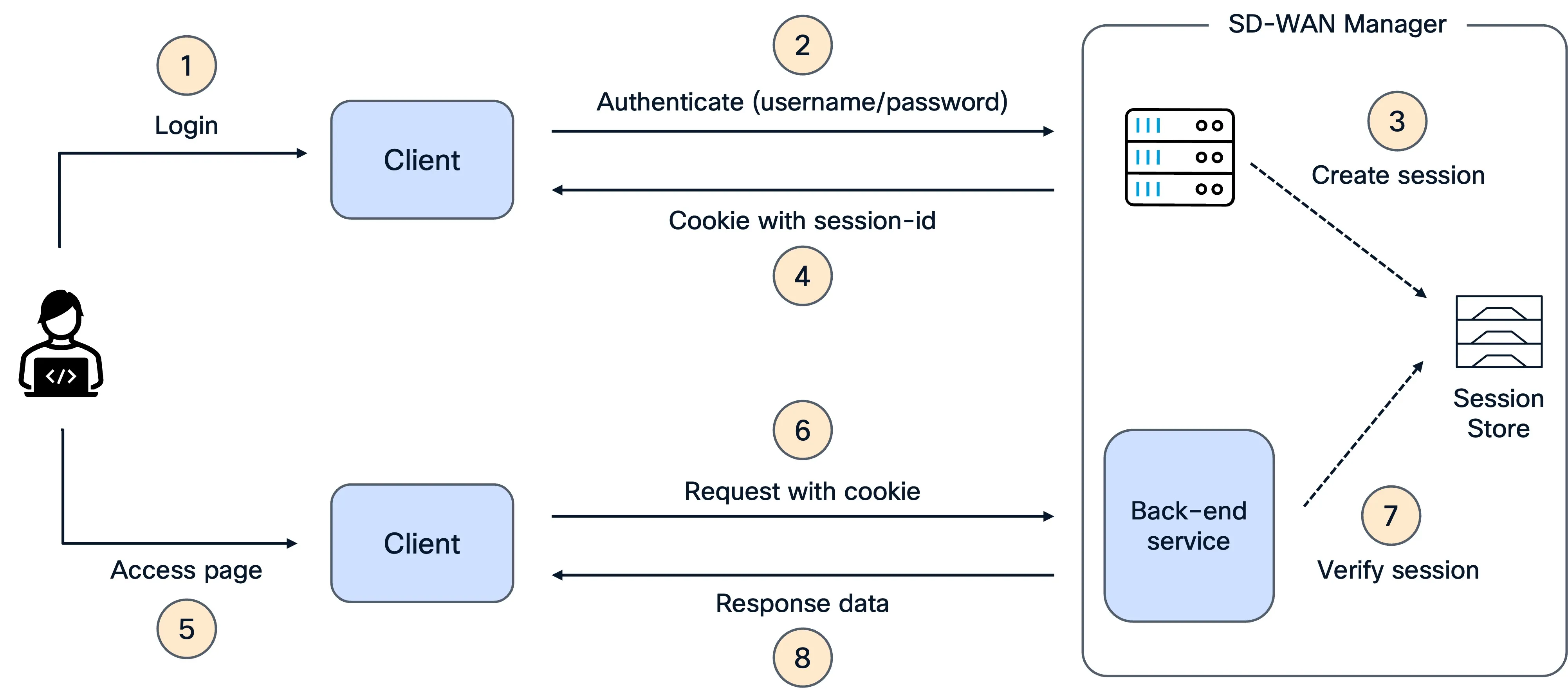
Cisco Catalyst SD-WAN Manager still supports a traditional REST API access control that is based on sessions (JSESSIONIDs). With this authentication method, Cisco Catalyst SD-WAN Manager creates a session for each user after successful login.
2.1. Login with a username and password
Section titled “2.1. Login with a username and password”Log in with a username and password to establish a Session.
POST /j_security_check with content type x-www-form-urlencoded in the request header.
Submit the username and password as j_username and j_password in the body.
POSTdataservice/j_security_checkLogin with Username and Password
Content-Type: application/x-www-form-urlencodedRequest body
j_username: {{username}}j_password: {{password}}Response
Empty body, but the response header includes a valid session cookieWhen a user authenticates successfully, the response body is empty, but the response header includes a valid session cookie.
The session token is in the response HTTP cookie: JSESSIONID=<session hash>.
2.2. Get XSRF prevention token
Section titled “2.2. Get XSRF prevention token”Get an XSRF prevention token, necessary for most POST operations:
POST/dataservice/client/tokenGet Token
Content-Type: application/jsonCookie: JSESSIONID={{jsessionid}}Request body
No BodyResponse
BB1AB8301ADF257AEB251839E8AD35733529D90CCD7CA345D8334473FF9F8864829AD5273253AF554F474E8DF8408787271DThe response body is the CSRF token (plain string, no JSON wrapper). Save it as X_XSRF_TOKEN.
Example with Bruno:
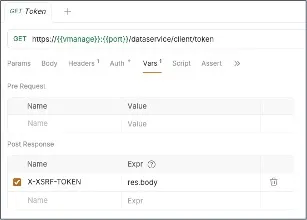
All subsequent requests must include:
content-type: application/jsonX-XSRF-TOKEN: {{X_XSRF_TOKEN}}Cookie: JSESSIONID={{jsessionid}}- X-XSRF-TOKEN — proves the request is intentional (CSRF protection), required for POST/PUT/DELETE operations
- Cookie: JSESSIONID — identifies your authenticated session, required for all requests
3. Practice with Bruno
Section titled “3. Practice with Bruno”Open Bruno and load the collection located in the bruno/sdwan-sandbox folder of this repository. The authentication requests for this page are in bruno/sdwan-sandbox/Authentication.
Before running any request, select the sandbox environment from the environment picker (top-right dropdown). This environment contains the shared variables used by the collection, including {{vmanage}}, {{port}}, and {{X-XSRF-TOKEN}}. Set the secret variables {{vmanage}} and {{apikey}} before you start.
The Authentication folder demonstrates the API key authentication flow:
Step1: Get the CSRF token
- Go to the
Authenticationfolder - Use the
01 - Get Auth Tokenrequest and hit send - This sends
GET /dataservice/client/tokenwith theAuthorization: Bearer {{apikey}}header - The response body is the CSRF token as a plain string
- The post-response script automatically saves it to the Bruno variable
{{X-XSRF-TOKEN}}
Step2: Validate Manager access
- Use the
02 - Get Statusrequest and hit send - This sends
GET /dataservice/client/about - The request includes both
Authorization: Bearer {{apikey}}andX-XSRF-TOKEN: {{X-XSRF-TOKEN}} - A successful response confirms that the API key and CSRF token are working
Step3: Run an authenticated API request
- Use the
03 - Fabric Devicesrequest and hit send - This sends
GET /dataservice/device - The request reuses the same authentication headers from the environment
- The response lists the devices known to SD-WAN Manager